
 Windows
 Mac
MacOverview
Blank or white screen upon trying to register Quicken software (or blank "Success" screen after registration) on Windows.
First, try updating Quicken and Validating your file
Download the
latest update here if you have not done so already.After completing the update, open Quicken.
Hold the Control key and select File menu > Validate & Repair File.
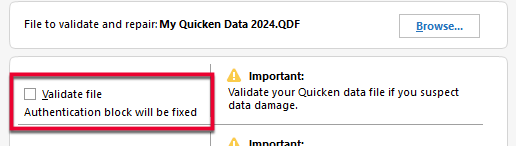
Check the Validate file box and click OK.
How can we help?
✖Still need help? Contact Us
If initiated correctly, the Validate file checkbox will also show the message "Authentication block will be fixed" as pictured above.
When the Validate process is complete, try to sign in again.
Next, sign out of Quicken and sign back in
Go to Edit > Preferences > Quicken ID & Cloud Accounts. If you are unable to see your Edit > Preferences menu, continue to the next section.
Click Sign in as a different user.
Type "yes" to confirm and click Sign Out.
After you sign out, sign back in with the same Quicken ID.
Third, close Quicken and reopen it
There are some instances in which Quicken simply needs to be closed and reopened for the Sign-in screen to load. Try this a few times before moving on to the next steps.
Fourth, try connecting to the Quicken ID login website
Close Quicken.
Launch a web browser.
Go to the
Quicken My Account login page. If the webpage appears, then the system can connect to the Quicken ID server. If the webpage cannot be displayed, followinternet connectivity troubleshooting .
Fifth, turn off the Firewall
Open the Control Panel. The Control Panel is located in the Windows System folder in the Start menu.
In the Control Panel, select System and Security.
Now in System and Security select Windows Firewall.
Select Turn Windows Firewall on or off.
If you are given the option to turn off the Private and Public Firewalls, select to turn both off.
Once turned off, click OK.
Lastly, create a new admin account
Check to see if there is a hidden Administrator account on the computer.
Go to Settings > Accounts.
Select Family & other people.
Verify there are no hidden users. If there are none, please proceed to the next step.
Create a new user administrator on the computer.
Click the Start button, and then select Settings.
Select Accounts > Family & other people.
Under Other people, select Add someone else to this PC.
At the bottom of the page, select I don’t have this person’s sign-in information.
At the bottom of the next page, select Add a user without a Microsoft account.
Enter a name for the new account. If you want this person to sign in with a password, enter and verify the password, add a password hint, and then select Next.
Select Finish.
If the issue persists, contact


Community Content
Overview
Blank or white screen upon trying to register Quicken software (or blank "Success" screen after registration) on macOS.
First, sign out of Quicken and sign back in
Go to Quicken menu > Sign Out....
Confirm you want to sign out.
After you sign out, sign back in with the same Quicken ID.
Second, close Quicken and reopen it
There are some instances in which Quicken simply needs to be closed and reopened for the Sign-in screen to load. Try this a few times before moving on to the next steps.
Third, turn off the Firewall
Choose System Settings from the Apple menu.
Click Security or Security & Privacy.
Click the Firewall tab.
Unlock the pane by clicking the lock in the lower-left corner and enter the administrator username and password.
Click Turn Off Firewall.
Also, ensure any firewall/network monitoring tools (such as Radio Silence or Little Snitch) are temporarily disabled.
Try opening Quicken again.
Fourth, try connecting to the Quicken ID login website
If you still encounter the blank screen:
Close Quicken.
Launch a web browser.
Go to the
Quicken My Account login page. If the webpage appears, then the system can connect to the Quicken ID server. If the webpage cannot be displayed, followinternet connectivity troubleshooting .
If the issue persists
If the steps above do not resolve the issue, please contact