Overview
Looking to learn more about reconciling accounts? In this article, we'll break down what reconciling is and explore the different ways to reconcile in Quicken!
What is Reconciling?
When you balance, or reconcile, an account, you compare your Quicken account records against your current bank statement and resolve any differences between the two. Reconciliation can be affected by transactions that occurred in the period shown on your current bank statement as well as by earlier transactions.
Important: Reconciling is not a required process, but some users choose to reconcile their accounts to ensure consistency between their information in Quicken and what is on their bank statement.
While reconciling is typically done with manual accounts (accounts where transactions are entered manually instead of downloaded from the bank), the option to reconcile an account connected to online services does exist.
You can find additional information on Reconciling by visiting our community article,
How to Reconcile
To reconcile a spending account to a paper statement
Open the account you want to reconcile.
Go to Tools > Reconcile an Account....
If prompted, select Use paper statement.
Using your paper statement, verify the ending statement date, opening or prior balance (your financial institution may call this the beginning or previous balance) and enter the ending balance. Note: The first time you reconcile an account, the opening balance is taken from the ending balance of your previous statement.
Enter the date and category information, and if there is a service charge or interest earned. (Optional)
Click OK.
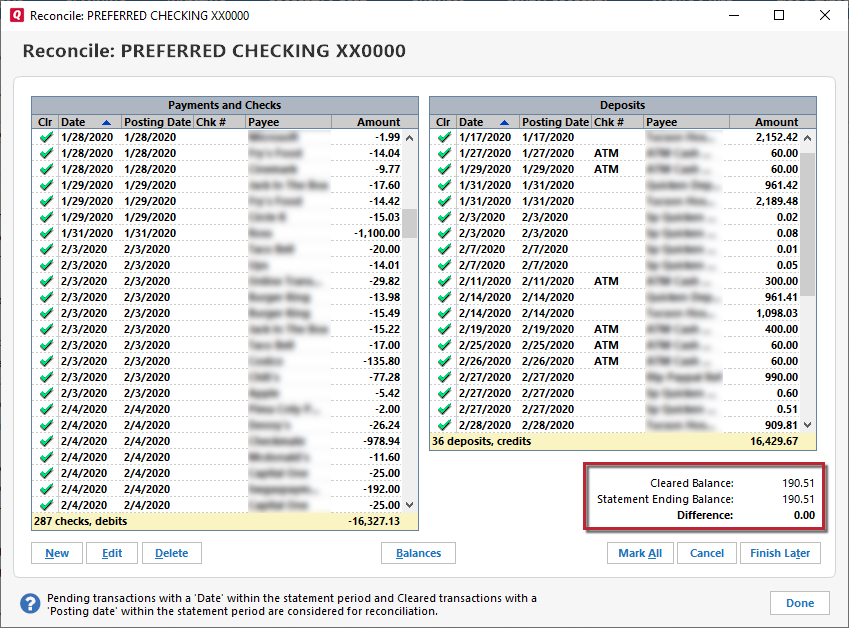
Check off the transactions under the Clr column in the window that also appear on your statement. If necessary, you can click the column headings to sort the transactions. Note: If you download transactions, all the transactions from your statement should already be checked (cleared) in the Reconcile window.
Click Done if the difference in the lower-right corner is zero.
To reconcile a spending account to an online balance
When you use this method, Quicken reconciles your Quicken account to the latest downloaded data, so make sure you download your latest transactions and accept the transactions into your register.
1. Open the account you want to reconcile.
2. Go to Tools > Reconcile an Account....
3. In the Reconcile Online Account window, select Use online balance.
4. Click OK.
How can we help?
✖Still need help? Contact Us
5. Click Done if the difference in the lower-right corner is zero.
Note: If you've reconciled this Quicken account to a paper statement before using transaction download, you may continue with this method. You can switch at any time to reconciling to your online balance, which means that your Quicken register will be reconciled to information that is more current than that contained in a paper statement. However, you shouldn't switch back to the paper statement method after reconciling to your online balance.
Important: If you completed the reconcile process and realized you may have completed it incorrectly or made several errors, the best solution is to
Auto Reconcile
With accounts that you've activated for transaction download and that you reconcile to an online balance, Quicken can save you steps!
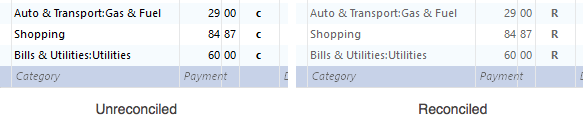
If your Quicken balance matches your online balance, Quicken can automatically reconcile your transactions. It does this by placing an R in the Clr column of the register after your downloaded transactions are accepted in the Compare to Register window.
How can we help?
✖Still need help? Contact Us
If the balances don't match, Quicken displays the Reconcile window to help you find the problem.
Note: You can use the Auto Reconcile feature only with bank accounts that you've activated for transaction download, and you can use this optional feature anytime you like.
Enabling Auto Reconcile
To enable Auto Reconcile:
1. Open the account you want to Auto Reconcile.
2. Go to Tools > Reconcile an Account....
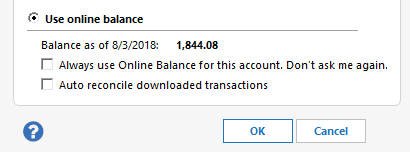
3. Make sure the Use online balance option is selected.
How can we help?
✖Still need help? Contact Us
4. Select the Auto reconcile downloaded transactions check box.
5. Continue to reconcile. The Auto Reconcile feature takes effect after your next online session. At that time, Quicken automatically reconciles your downloaded transactions after you finish comparing them to your account register.
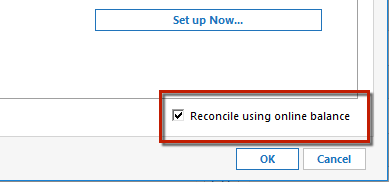
Please note, if you have already chosen to Reconcile to online balance, you won't see the Auto Reconcile option as being available to select. You will need to go to Tools > Account List and click Edit next to the account you want to Auto Reconcile.
How can we help?
✖Still need help? Contact Us
In the Account Details window, go to the Online Services tab and uncheck Reconcile using online balance in the bottom right corner. You will now be able to follow the steps outlined above to enable Auto Reconcile and have the option to Reconcile to online balance again.
Disabling Auto Reconcile
To disable Auto Reconcile:
1. Open the account you want to disable Auto Reconcile in.
2. Go to Tools > Reconcile an Account....
3. Make sure the Use online balance option is selected.
How can we help?
✖Still need help? Contact Us
4. Clear the Auto reconcile downloaded transactions check box.
Troubleshooting
If you need troubleshooting help,
Frequently Asked Questions
For answers to the most frequently asked questions,