
 Windows
 Mac
MacOverview
If your investment account balances don’t match what you see at your financial institution, it indicates a balance discrepancy. This article will walk you through the most common causes—such as securities discrepancies, shares discrepancies, or price mismatches—and show you step by step how to identify and correct them so your investment balances are accurate again.
First, Review and Resolve Placeholders
Quicken enters a placeholder entry when you’re missing part of your investment transaction history. For any security, if the total number of shares bought or added in your transaction list doesn’t match the number of shares in your account, Quicken adds a placeholder entry to make up the difference. This often happens when Quicken doesn’t have a complete transaction history for the account, such as after downloading transactions for the first time or reconnecting an investment account.
To learn how to resolve placeholders, please refer to the article "
Note: If you're adding your account to Quicken for the first time and the account has no placeholders, or if, after resolving placeholders, the balance is still incorrect, please
Access the Portfolio Holdings
In this step, you’ll open your Quicken account and navigate to the Holdings view so you can see all the securities in the affected investment account.
1. Open Quicken.
2. Select the affected investment account from the Accounts panel on the left.
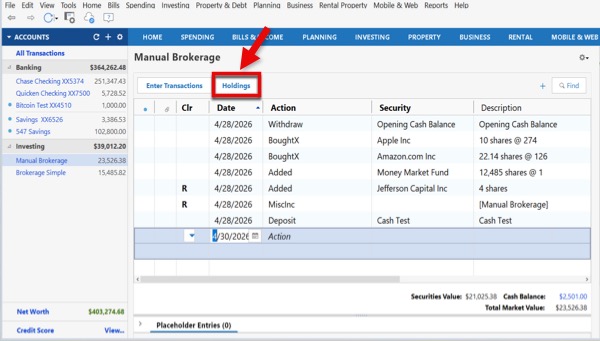
3. Click the Holdings button at the top of the account register.
How can we help?
✖Still need help? Contact Us
Note: If you don’t see the Holdings button, your account might be in Simple Tracking Method (Positions Only). You can access your holdings by following these steps:
Click the gear icon (settings) in the upper-right corner of the account’s register.
Select Account Overview.
Review Your Securities and Quantity of Shares
After you open the holdings for the affected account, you need to sign in to your financial institution’s website and navigate to the holdings or portfolio view. Go over each security and compare it with the information in Quicken to verify it matches your financial institution’s records.
To review investment lots, follow these steps:
1. Select the affected investment account from the Accounts panel on the left.
2. Click the Holdings button at the top of the account register.
3. Click the plus sign (+) to the left of the affected security name.

How can we help?
✖Still need help? Contact Us
4. If you encounter an investment lot that needs adjustment, note the lot date.
Note: If the investment lots appear correct but you still have a discrepancy, skip to the "Method 1: Add Transaction (Recommended for Accuracy)" section below.
How to Resolve Security and Share Discrepancies
If you encounter security or share discrepancies in Quicken, you can adjust them by adding or deleting them as needed.
Note: To correct the security or shares discrepancy in Quicken, your account must be set to use the Complete investment tracking method. If you’re not sure which method your account is using, please refer to the article “
Adjust the investment lot details:
1. Select the affected investment account from the Accounts panel on the left.
2. Locate the transaction for that security on the same date of the lot (this is often a “Bought” or “Added” transaction).

How can we help?
✖Still need help? Contact Us
3. Right-click on that transaction.
4. Select Edit.
5. Make the necessary adjustments for:
Transaction date.
Security name.
Number of shares
Price paid per share.
6. Click Enter/Done to save the transaction.
If you still have a balance discrepancy after adjusting investment lots, try one of these two options:
Method 1: Add a Transaction (Recommended for Accuracy)
This method provides the most accurate performance and tax reporting. Use this option if:
The security does not appear in your portfolio holdings in Quicken.
The lot details are correct.
You know when and how the shares were originally purchased.
To enter a transaction, follow these steps:
1. Select the affected investment account from the Accounts panel on the left.
2. Click the Enter Transactions button at the top of the account register.

How can we help?
✖Still need help? Contact Us
3. On the field at the top, select “Buy - Shares Bought” (if you’re missing shares) or select “Sell - Shares Sold” (if you have extra shares).

How can we help?
✖Still need help? Contact Us
4. Enter the transaction details:
Transaction date.
Security name.
Number of shares (quantity of shares that represents the difference).
Note: You can use a minus sign (-) before the number when removing shares.
Price paid per share.
5. Click Enter/Done to save the transaction.
Method 2: Enter an Adjustment (Use When History Is Unavailable)
Whether the security is listed in the portfolio holdings or not, if you no longer have access to the original transaction details, you can enter a share balance adjustment.
1. Select the affected investment account from the Accounts panel on the left.
2. Click the gear icon (settings) in the upper-right corner of the account’s register.

How can we help?
✖Still need help? Contact Us
3. Select Update share balance.
4. Enter the adjustment details:
Adjustment date.
Security name to adjust.
Number of shares (current quantity of shares you’re holding).
5. Click OK to save the adjustment.
To confirm that you have resolved the discrepancy in your portfolio holdings, click the Holdings button at the top and verify the information.
Review the Quotes/Prices
The quote price represents the current, real-time market value of a security such as a stock, bond, or commodity. If the quoted price is incorrect, that may be the reason for the discrepancy in your investment account balance.
To access the Quotes/Prices, follow these steps:
Select the affected investment account from the Accounts panel on the left.
Click the Holdings button at the top of the account register.
You’ll see the Quote/Price to the right of each security name.

How can we help?
✖Still need help? Contact Us
How to Resolve Security and Share Discrepancy
To update Quotes/Prices, follow these steps:
Select the affected investment account from the Accounts panel on the left.
Click the gear icon (settings) in the upper-right corner of the account’s register.
Select Update Quotes only.

How can we help?
✖Still need help? Contact Us
Note: Online quotes are delayed at least 15 minutes. Options quotes are the previous day's close.
If, after the update, the quotes/prices are not available, you can update them manually by following these steps:
1. Select the affected investment account from the Accounts panel on the left.
2. Click the Holdings button at the top of the account register.
3. Click the quote/price amount you want to update.

How can we help?
✖Still need help? Contact Us
4. Enter the updated price.
5. Press Enter on your keyboard to save the new quote/price
Review the Cash Balance
An incorrect cash balance in Quicken is usually caused by uncleared pending transactions, a mismatch between the bank statement and register, or missing transactions.
To see your cash balance, follow these steps:
Select the affected investment account from the Accounts panel on the left.
Click the Holdings button at the top of the account register.
You’ll see the cash listed last among the securities.

How can we help?
✖Still need help? Contact Us
How to Resolve Cash Balance Discrepancy
For investment accounts with an incorrect cash balance, you can manually update the cash balance by following these steps:
1. Select the affected investment account from the Accounts panel on the left.
2. Click the Holdings button at the top of the account register.
3. Click the gear icon (settings) in the upper-right corner of the account’s register.
4. Select Update cash balance.

How can we help?
✖Still need help? Contact Us
5. Enter the current cash amount you’re holding for this account.
6. Select the date for the adjustment.
7. Click OK to save the adjustment.
To learn more about updating quotes/prices, please refer to the article


Community Content
Overview
If your investment account balances don’t match what you see at your financial institution, it indicates a balance discrepancy. This article will walk you through the most common causes—such as securities discrepancies, shares discrepancies, or price mismatches—and show you step by step how to identify and correct them so your investment balances are accurate again.
First, Review and Resolve Placeholders
Quicken enters a placeholder entry when you’re missing part of your investment transaction history. For any security, if the total number of shares bought or added in your transaction list doesn’t match the number of shares in your account, Quicken adds a placeholder entry to make up the difference. This often happens when Quicken doesn’t have a complete transaction history for the account, such as after downloading transactions for the first time or reconnecting an investment account.
To learn how to resolve placeholders, please refer to the article "
Note: If you're adding your account to Quicken for the first time and the account has no placeholders, or if, after resolving placeholders, the balance is still incorrect, please
Access the Portfolio Holdings
To determine the cause of the discrepancy, you’ll need to access your portfolio holdings in Quicken so you can start reviewing them.
Open Quicken.
Select the affected investment account from the Accounts panel on the left.
Click on the Portfolio tab at the top of the account register.

How can we help?
✖Still need help? Contact Us
Review Your Securities and Quantity of Shares
After you open the holdings for the affected account, you need to sign in to your financial institution’s website and navigate to the holdings or portfolio view. Go over each security and compare it with the information in Quicken to verify they match your financial institution’s records.
To review investment lots, follow these steps:
Select the affected investment account from the Accounts panel on the left.
Click on the Portfolio tab at the top of the account register.
Click the drop-down to the left of the affected security name to display the investment lots.
If you encounter an investment lot that needs adjustment, note the lot date.

How can we help?
✖Still need help? Contact Us
If the investment lots appear correct but you still have a discrepancy, skip to the "How to Resolve Security and Share Discrepancy" section below.
How to Resolve Security and Share Discrepancy
If you encounter security or share discrepancies in Quicken, you can adjust them by adding or deleting them as needed.
Note: To correct the security or shares discrepancy in Quicken, your account must be set to use the Detailed investment tracking method. If you’re not sure which method your account is using, please refer to the article “
Adjust the investment lot details:
1. Select the affected investment account from the Accounts panel on the left.
2. Click on the Transactions tab at the top of the account register.

How can we help?
✖Still need help? Contact Us
3. Locate the transaction for that security on the same date of the lot (this is often a “Buy” or “Add Shares” transaction).
4. Double-click on that transaction.
5. Make the necessary adjustments for:
Transaction date.
Security name.
Number of shares.
Price paid per share.
6. Click Save.
Add a Transaction (Recommended for Accuracy)
This method provides the most accurate performance and tax reporting. Use this option if:
The security does not appear in your portfolio holdings in Quicken.
The lot details are correct.
To enter a transaction, follow these steps:
1. Select the affected investment account from the Accounts panel on the left.
2. Click on the Transactions tab at the top of the account register.
3. Click the + New button at the bottom of the account register.

How can we help?
✖Still need help? Contact Us
4. On the Transaction Type field, select “Buy” (if you’re missing shares) or select “Sell” (if you have extra shares).

How can we help?
✖Still need help? Contact Us
5. Enter the transaction details:
Transaction date.
Security name.
Total Cost.
Number of shares (quantity of shares that represents the difference).
Note: You can use a minus sign (-) before the number when removing shares.
Commission (optional).
6. Click Save.
To confirm that you have resolved the discrepancy in your portfolio holdings, click the Portfolio tab at the top and verify the information.
Review the Quotes/Prices
The quote price represents the current, real-time market value of a security such as a stock, bond, or commodity. If the quoted price is incorrect, that may be the reason for the discrepancy in your investment account balance.
To access the Quotes/Prices, follow these steps:
Select the affected investment account from the Accounts panel on the left.
Click on the Portfolio tab at the top of the account register.
You’ll see the Quote/Price to the right of each security name.

How can we help?
✖Still need help? Contact Us
How to Resolve Quotes/Prices Discrepancy
To update Quotes/Prices, follow these steps:
Select the affected investment account from the Accounts panel on the left.
Click the Update icon (circular arrow) in the upper-right corner of the Portfolio view.

How can we help?
✖Still need help? Contact Us
Note: Online quotes are delayed at least 15 minutes. Options quotes are the previous day's close.
If, after the update, the quotes/prices are not available, you can update them manually by following these steps:
1. Select the affected investment account from the Accounts panel on the left.
2. Click on the Portfolio tab at the top of the account register.
3. Click on the quote/price amount you want to update.
4. On the Edit Share Price window, enter the updated price.

How can we help?
✖Still need help? Contact Us
5. Click Save.
Review the Cash Balance
An incorrect cash balance in Quicken is usually caused by uncleared pending transactions, a mismatch between the bank statement and register, or missing transactions.
To see your cash balance, follow these steps:
Select the affected investment account from the Accounts panel on the left.
Click on the Portfolio tab at the top of the account register.
You’ll see the cash listed last among the securities.

How can we help?
✖Still need help? Contact Us
How to Resolve a Cash Balance Discrepancy
For investment accounts with an incorrect cash balance, you can manually adjust the cash balance by following these steps:
1. Select the affected investment account from the Accounts panel on the left.
2. Click on the Transactions tab at the top of the account register.
3. Click the + New button at the bottom of the account register.
How can we help?
✖Still need help? Contact Us
4. On the Transaction Type field, select Payment/Deposit.
5. In the Description/Category field, select Transfer, and then select the same investment account name (transferring into the same account).
Note: When recording a transfer into the same account, we exclude this cash adjustment from reports, so it doesn't count as either income or an expense.
6. Enter the cash amount that represents the difference. You can use a minus sign (-) before the amount when decreasing the balance.

How can we help?
✖Still need help? Contact Us
7. Click Save.