Overview
Categorizing your transactions is a fundamental part of Quicken. Categories track the source of a deposit (such as Salary), the reason for an expenditure (such as Clothing), or the name of the account to which you are transferring funds (such as Savings). Categorized transactions also drive several key features such as reports, tax reporting, and budgets.
Category List
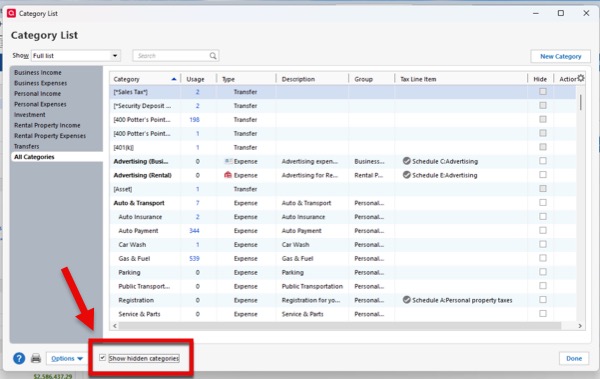
The Category List shows all of the categories in the current file and helps you organize and locate them quickly.
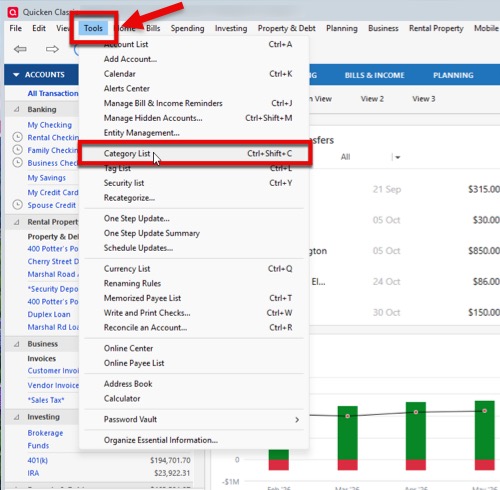
You can access the Category List by following these steps:
- Click the Tools menu at the top.
- Select Category List.
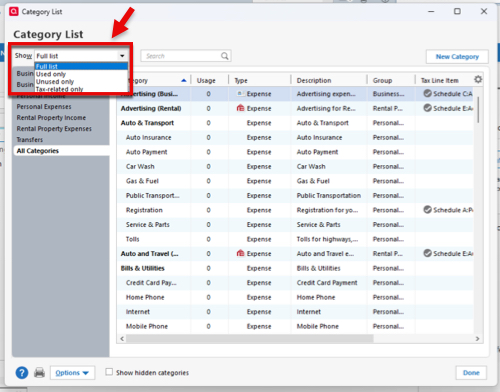
By default, the list is sorted alphabetically by name, and any subcategories appear indented directly beneath their parent category. At the bottom of the Category List, under Transfers and Payments, you’ll also see the account names that are available to use when making a transfer. If you want to change how the Category List is displayed, use the Show dropdown to filter the list and display only certain categories—for example, tax-related categories only. To quickly locate a particular category, use the Search bar located next to the Show dropdown.
Creating a new category or subcategory
In addition to the default category list that comes with Quicken, you can also create your own categories.
- Click the Tools menu at the top.
- Select Category List.
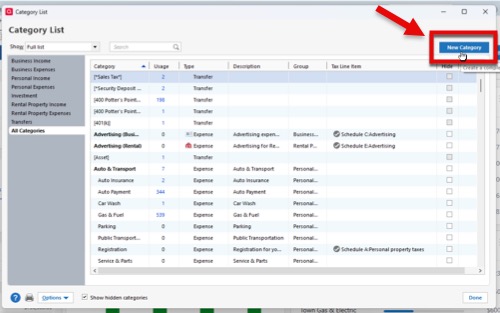
- Click the New Category button located at the upper right of the Category List window.
- Type in a category name and description.
- Select if this is going to be an Income or Expense type, or if it will be a Subcategory of a broader parent category.
- Click Save when finished.
Edit a category or subcategory
Quicken lets you edit the name or details of a category and its subcategories at any time.
When renaming categories: If a category is already used in transactions, you can still rename it. Quicken automatically updates the name on all associated transactions.
- Click the Tools menu at the top.
- Select Category List.
- Right-click the category or subcategory you want to edit, and then choose Edit.
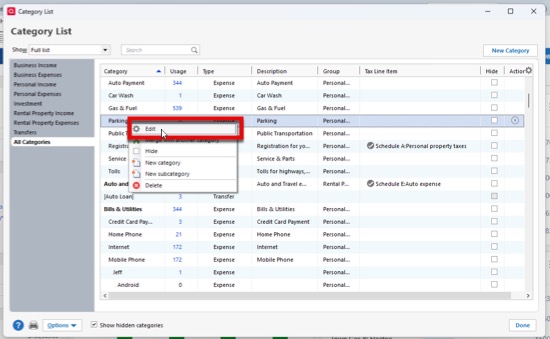
- Enter the desired changes in the Edit Category window.
- Click OK.
Note: Categories with names beginning with an underscore (_) are used in investment transactions. These are the only categories you can't edit or delete.
Assign a tax line item to a category
If you plan to use your Quicken data when filing your income tax forms, it’s a good idea to set up tax-related categories. This helps Quicken match your data to the right tax forms, so everything lines up correctly at tax time.
Follow these steps to assign a tax line item:
- Click the Tools menu at the top.
- Select Category List.
- Right-click the category or subcategory you want to edit, and then choose Edit.
- Click on the Tax Reporting tab.
- Select the “Tax related category” checkbox.
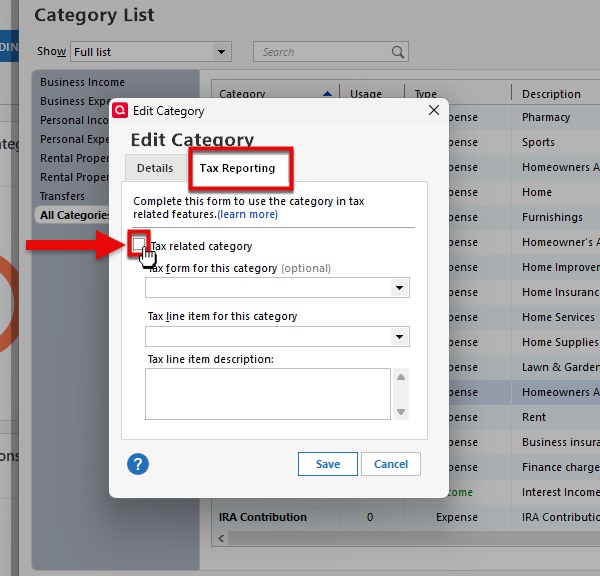
- Assign a tax form and tax line item to the category.
- Click Save when finished.
Delete a category
If you decide you no longer need a category, you can delete it (but before you do, you might first want to merge it with another category).
Follow these steps to delete a category:
- Click the Tools menu at the top.
- Select Category List.
- Right-click the category or subcategory you want to delete, and choose Delete.
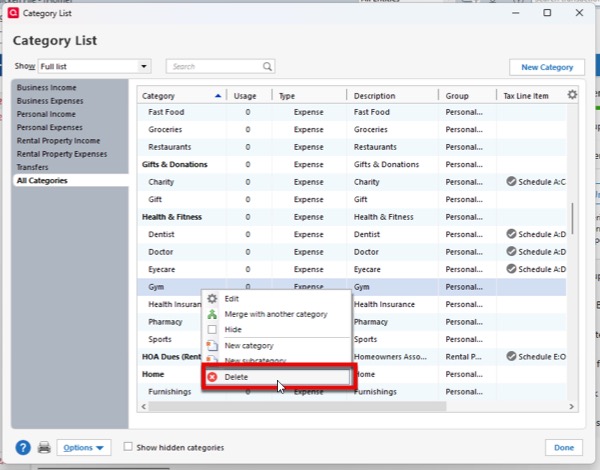
- Click OK to confirm.
Merge categories
If you start by using two similar categories and later decide that you need only one of them, you can merge the categories so that you don't lose any information you've already entered.
Note: You can merge only categories that have transactions associated with them.
Follow these steps to merge two categories:
- Click the Tools menu at the top.
- Select Category List.
- Right-click the category or subcategory you want to merge.
- Click Merge with another category.
- Select the new category to use.
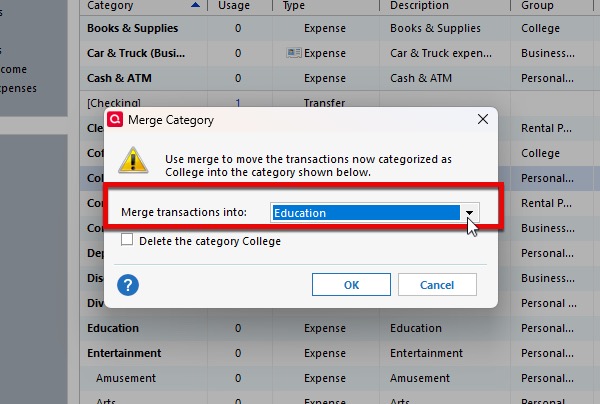
- Choose whether you want to delete the previous category.
- Click OK to confirm.
Hide Categories
Even a well-managed category list can grow quite large, and you might not want to delete categories in case you need them again. By hiding categories, you can focus on your most commonly used options and reduce the clutter of unused or rarely used ones. You can restore any hidden category and make it visible again at any time.
Follow these steps to hide a category:
- Click the Tools menu at the top.
- Select Category List.
- Right-click the category or subcategory you want to hide.
- Select Hide.
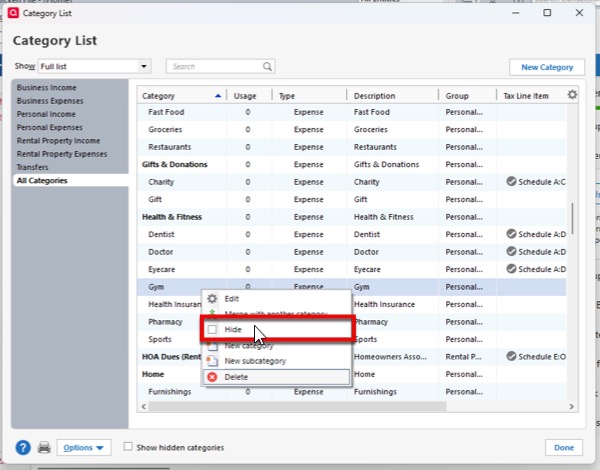
You can view hidden categories by selecting the “Show hidden categories” checkbox in the bottom-left corner.
Frequently Asked Questions
How do I see all transactions associated with the same category?
If you want to know how much you are spending on a certain type of item, you can quickly see all transactions assigned to the associated category or transfer account in Reports>Banking>Transactions report.
Are subcategories included in reports?
Yes, reports show the subcategory amounts as subtotals for their parent category.
Can I recategorize a transaction?
Yes. If you assign an incorrect category, you can simply recategorize the transaction by clicking the category field and selecting the correct category. Be sure to press Enter to save the changes.
How does Quicken choose a category when I enter a transaction manually?
For manually entered transactions, Quicken first searches the Memorized Payee List and then the register for a transaction with a matching payee entered within the last year. If it finds a match, Quicken automatically enters the category.
- If a QuickFill or memorized payee exists, Quicken pre-fills the Category field with the category stored in that QuickFill or memorized payee.
- If the memorized payee or QuickFill is a split transaction and the split amounts differ from those in the memorized payee, Quicken prompts you to edit the split amounts as needed.
- ATM transactions and transaction download service charges may be labeled EFT, for electronic funds transfer.
- If no matching payee is found, the Category field is left blank.
To use the suggested category, simply record the transaction as usual. If you change the category, Quicken remembers your change.
How does Quicken know which category to assign to a downloaded transaction?
When you download transactions from your financial institution, each one may include a merchant code. Your online banking service reads this code and maps it to a Quicken category.
- If a matching category is found, Quicken uses that category for the transaction
- If no matching category is found, Quicken selects a category for the new transaction based on the merchant code.
Note: Quicken will not suggest a category for downloaded transactions that use generic payee names, such as VISA or MasterCard.