Overview
You may receive the following message when attempting to open Quicken.

How can we help?
✖Still need help? Contact Us
This warning can appear if you keep your Quicken data file in OneDrive instead of having it stored locally on your hard drive.
What does this mean?
OneDrive is Microsoft's cloud storage — it automatically saves files from your Documents folder to the internet. That's great for most files, but Quicken needs its data file stored directly on your computer, not in the cloud.
Think of it like this: Quicken needs its file to sit still. OneDrive keeps moving it around in the background, which can cause errors, missing transactions, or data getting out of sync.
The fix is to move one file from your OneDrive folder to a regular folder on your computer. Your data will not be deleted. Nothing will be lost.
Note: This process usually takes 5–15 minutes. You'll need to use File Explorer (the file browser on your computer).
Step 1: Confirm the location of your data file
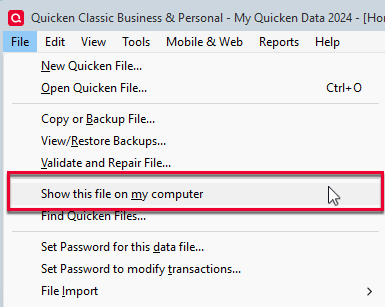
1. Open Quicken and go to File > Show this file on my computer.
A File Explorer window will open, showing you the folder where your Quicken file lives.
How can we help?
✖Still need help? Contact Us
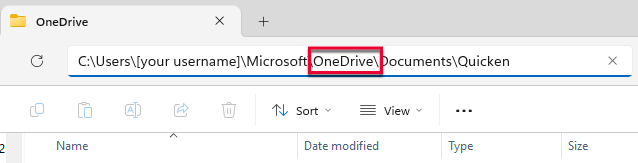
2. Look at the address bar near the top of the File Explorer window. This shows the file path — the location of your Quicken file on your computer.
How can we help?
✖Still need help? Contact Us
How to read the file path: It will look something like a chain of folder names separated by backslashes (\). You're looking for the word OneDrive anywhere in that chain — for example: C:\Users\[your name]\OneDrive\Documents\Quicken If you see OneDrive in the path, your file needs to be moved. Continue with Step 2.
Don't see OneDrive in the path? Your file may already be in the right place. The path should look something like C:\Users\[your name]\Documents\Quicken. If that's what you see and Quicken is still showing a warning, scroll down to the troubleshooting section below.
Step 2: Move your data file from OneDrive
Before you start: Close Quicken completely before moving any files. Quicken should not be open during this process. Keep the File Explorer window open.
1. In the File Explorer window, find your Quicken data file. It will end in .QDF and usually has your name or "Quicken" in the filename.
Not sure which file it is? Look for the file with the largest size — it's usually several megabytes (MB). If you see multiple .QDF files, use the one with the most recent date modified.
2. Right-click on that file, and select Cut.
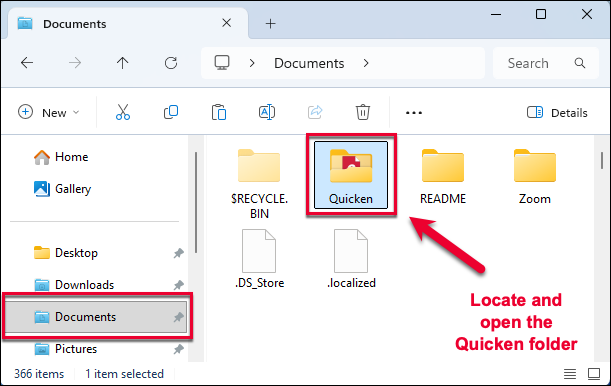
3. Navigate to this location in File Explorer: This PC → Local Disk (C:) → Users → [your name] → Documents → Quicken
How can we help?
✖Still need help? Contact Us
The Quicken folder doesn't exist? That's okay — you can create it. In the Documents folder, right-click on an empty space, select New, then Folder, and name it Quicken.
4. In the Quicken folder, right-click on an empty space and select Paste.
Windows asks if you want to move or copy? Choose Move. You want the file here, not a copy.
5. Double-click the data file that you've placed in the local folder to open it in Quicken.
Nothing happened when you double-clicked? Try opening Quicken first, then go to File → Open Quicken File and navigate to the Documents\Quicken folder to find and open the file manually.
How to know it worked: Quicken will open without the OneDrive warning, and your accounts and transactions will look exactly as they did before. Nothing has changed in your financial data — only where the file is stored on your computer.
Troubleshooting common issues
Quicken opened but shows the OneDrive warning again
This usually means Quicken is still pointed at the old file location in OneDrive. You need to tell Quicken to use the file you just moved.
In Quicken, go to File > Open Quicken File.
Navigate to Documents > Quicken.
Click on your .QDF file and click Open.
Quicken should now open from the local copy and the warning should stop appearing.
I can't find the .QDF file anywhere
Your file may have a different name, or Windows may be hiding it. Try this:
Open File Explorer.
In the search box (top right), type .QDF and press Enter.
Wait for Windows to search — this may take a minute.
Look through the results for a file that has your name or "Quicken" in the filename, with a recent date.
Once you find it, right-click and select Cut, then paste it into your Documents\Quicken folder as described in Step 5 above.
Quicken opened but my transactions are missing or out of date
This can happen if OneDrive had synced an older version of your file. Your most recent data may be recoverable from a backup.
In Quicken, go to File > Restore from Backup.
Select the most recent backup from the list.
Click Restore.
If you don't see recent backups, or if this doesn't restore your data, please contact our support team — they can help you search your computer for the most recent version of your file.
A message says the file is "read only" or I can't paste it
OneDrive may still have the file open in the background. Try this:
Look in the bottom-right corner of your taskbar (the clock area) for the OneDrive icon — a white or blue cloud.
Right-click it and select Pause syncing > 2 hours.
Try the Cut and Paste steps again.
If you still can't move the file, try restarting your computer and attempting the steps again before OneDrive starts syncing.
I moved the file but now I can't find it / Quicken shows empty accounts
You may have opened a different, empty data file by mistake. This is one of the most common issues — your data isn't gone.
In Quicken, go to File > Open Quicken File.
Navigate to Documents > Quicken.
Look for a .QDF file — if there are multiple, open the one with the largest file size.
Your accounts and data should reappear as soon as you open the correct file.
Need to use Quicken on another computer?
Your data file can't be stored in cloud storage for this purpose — but there are other easy ways to move it between computers.
Still need help?
If you've followed all these steps and Quicken is still showing the warning — or if your data looks different than expected,